Disclosure: I build AnkiQuiz, the add-on used in this guide. I have included its pricing, data handling, and limitations so you can decide whether it fits your study routine.
If you have used Anki for a while, this has probably happened: you see a card, the answer feels instantly familiar, and you press Good. Then you realize you responded to the wording, layout, or even a typo rather than retrieving the fact itself.
That is recognition, not recall. The difference often becomes obvious only when an exam presents the same material in an unfamiliar way.
Medical students who see this mismatch can use the recognition, recall, and reasoning diagnostic to identify whether the card, the underlying concept, or the question approach needs work.
This guide shows you how to turn existing Anki cards into quizzes with distractors, rephrased questions, scores, and answer explanations. You can do it inside Anki without rewriting your cards.
What Anki does and doesn't do
Calling flashcards passive is not quite accurate. Anki is designed for retrieval practice: you are supposed to answer before revealing the back of a card.
Its main strength is scheduling. It decides when you should see each card again, and it does that very well.
What Anki does not vary is the framing of a question. A card normally uses the same prompt every time. It does not place plausible wrong answers beside the correct one, rephrase the prompt, or combine ideas from several cards. After enough repetitions, details such as wording, punctuation, and position in the deck can become part of the cue.
This is a limitation of the flashcard format, not a defect in Anki. Exams often rephrase material, offer several similar choices, and test related ideas together.
Writing enough practice questions by hand takes a lot of time. A more practical option is to generate them from cards you have already made.
What we're building
The goal is simple. Select a deck, let the AI read the chosen card fields, and generate a set of questions that opens inside Anki. After answering, you receive a score and an explanation for each question based on your source cards.
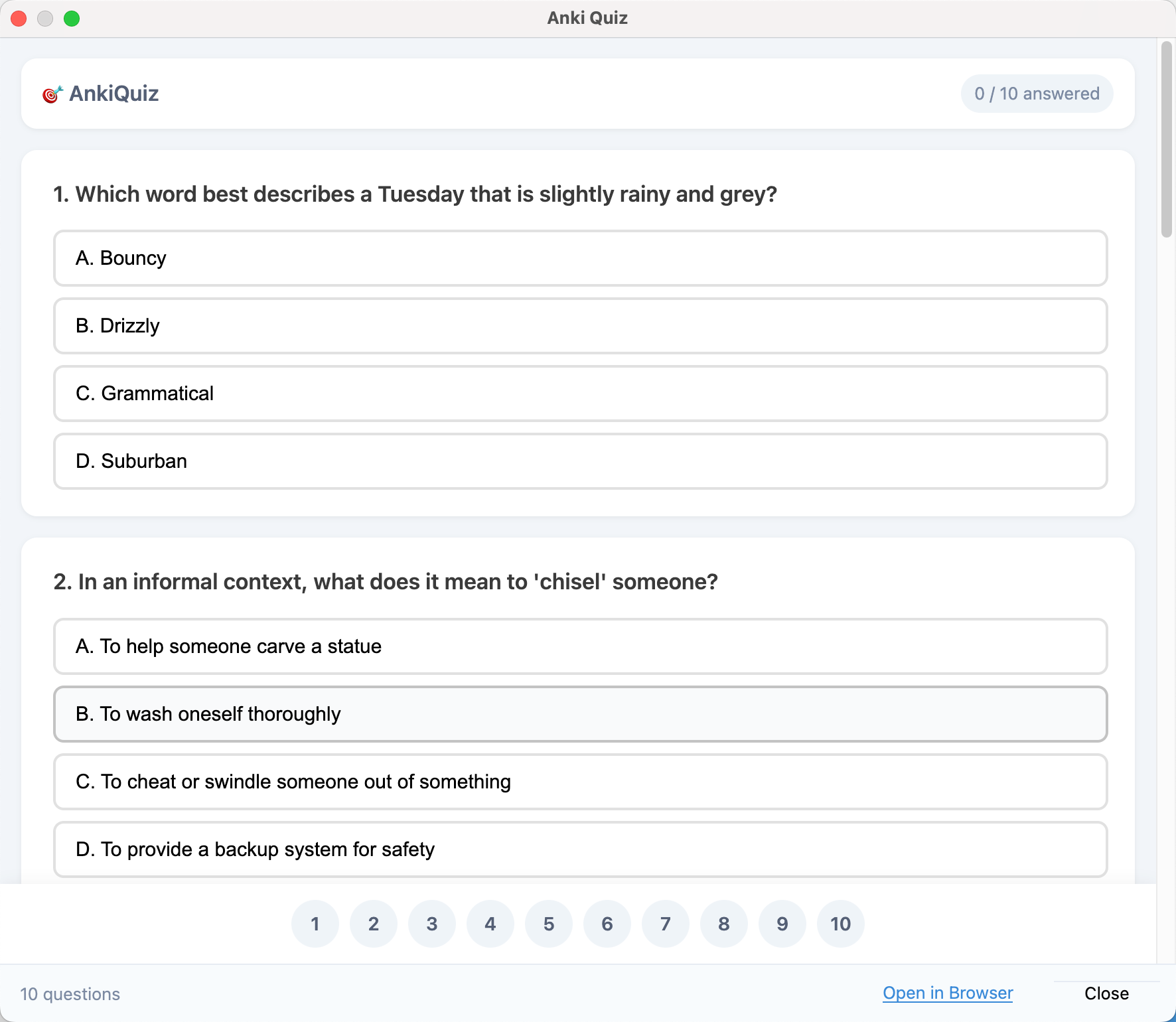
The initial setup has five steps and usually takes about three minutes.
Step 1: Install the add-on
In Anki on desktop, go to Tools → Add-ons → Get Add-ons…, paste the code 466373479, and restart Anki when prompted.
The installed add-on is listed as Anki Quiz. It requires Anki 23.10 or newer. There is no mobile version because card extraction reads your local Anki collection, so the add-on works only on desktop.
After restarting, open it from Tools → Anki Quiz. You can also right-click a deck in the deck list and choose Anki Quiz… to open the window with that deck already selected. The window is modal, which means you cannot use the main Anki window until you close it.
The add-on is available on AnkiWeb. If you run into trouble, follow the longer installation walkthrough.
Step 2: Connect your key
This setup step causes the most confusion, so follow it carefully.
When you first open the window, the large button at the bottom says API Key not configured instead of Generate Quiz. Quiz generation runs on a server, and the API key identifies your account.
At the top of the window, find 🔑 API Configuration and the field labeled Anki Quiz API Key:. Click [Get free key →] beside it to open the registration page in your browser.
Register with an email address and password. No credit card or verification email is required. On the dashboard, find the 🔑 Plugin API Key card and click Copy. The key starts with ak_.
Return to Anki, paste the key into the field, and press Enter or click anywhere outside the field. There is no Save button. The key is stored when the field loses focus.
A successful connection displays a quota bar such as 🎁 Free Trial · Today 0/10 · Trial total 0/100. Your username also appears in the window title.
If it doesn't connect: confirm that you copied the complete key, including the ak_ prefix, and press Enter after pasting it. If the menu item is missing, check that the add-on was installed and Anki was restarted.
Step 3: Choose a deck and useful fields
The deck picker allows one deck at a time, and subdecks are included automatically. Keep that in mind when choosing a large parent deck.
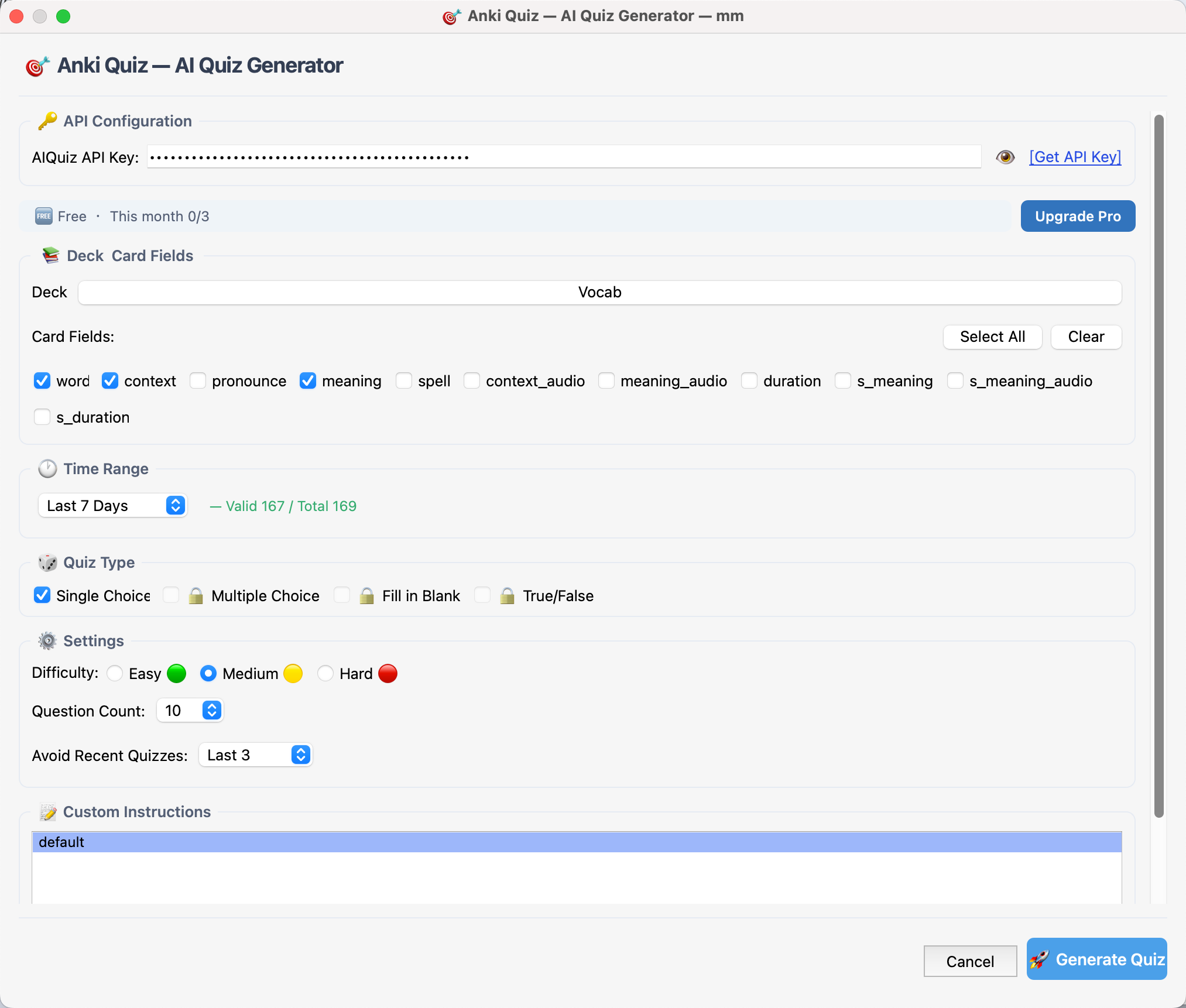
The Card Fields section lists fields from every note type in the selected deck. All fields are selected by default. Remove fields that contain no useful study content, such as audio references, timing data, source URLs, or organizational tags. Click Clear, then select only the fields you would want a tutor to read, such as the term, definition, and example sentence.
Next, choose a 🕐 Time Range. The default is Last 7 Days. This filter uses the date each card was last modified, not the date you last reviewed it. It cannot select only the cards you studied this week. For example, every card in a shared deck imported yesterday counts as recently modified. Suspended and buried cards are excluded.
Use All when you want questions from the entire deck. Shorter ranges are useful when you have recently added or edited cards. Before generating a quiz, check the live counter on the right, such as 167 cards, to confirm how many cards match your filters.
Step 4: Pick the question type and size
The 🎲 Quiz Type menu includes four formats:
- Single Choice: choose one correct answer from several plausible options.
- Multiple Choice: identify every correct answer in a set.
- Fill in Blank: produce the missing term, spelling, or exact phrase.
- True/False: decide whether a statement is accurate, including statements that overgeneralize a rule.
Single Choice is available during the 14-day trial and on the free tier. Multiple Choice, Fill in Blank, and True/False require Pro and appear locked on other plans.
Under ⚙️ Settings, difficulty can be Easy, Medium, or Hard, with Medium selected by default. Question Count starts at 10. The maximum depends on your plan, so unavailable values are omitted from the menu. Avoid Recent Quizzes defaults to Last 3 and deprioritizes cards used in your previous three quizzes.
These choices are saved separately for each deck. When you reopen the same deck, the settings return to their previous values.
Step 5: Generate and take the quiz
Click 🚀 Generate Quiz. A progress bar and elapsed timer appear. Generation typically takes 15 to 35 seconds. The first quiz for a new deck may take longer because the server first identifies the subject area.
The quiz opens in a window inside Anki. Use the Open in Browser link at the bottom if you prefer to view it on another screen.
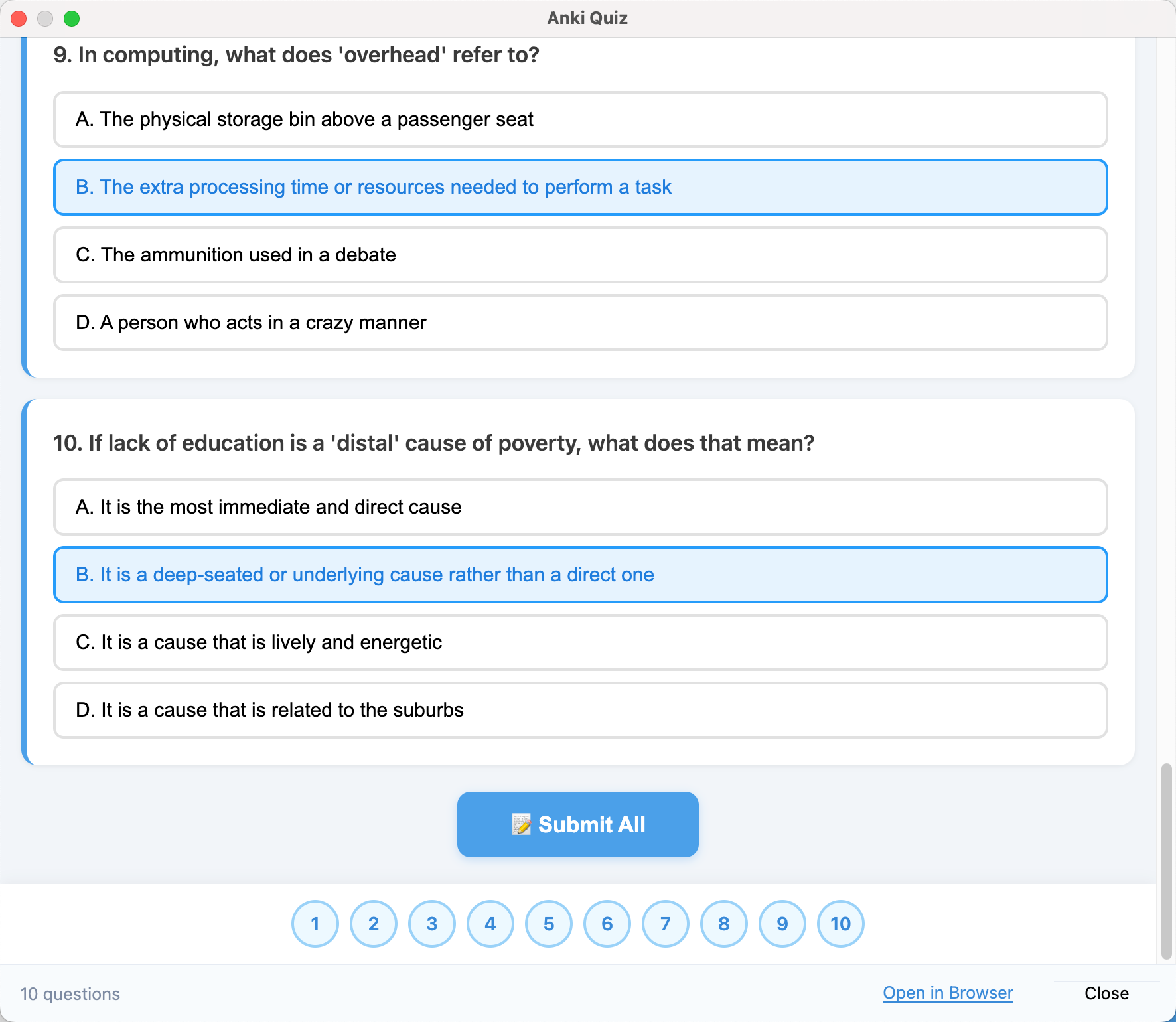
After answering, click 📝 Submit All. The quiz is graded once at the end, so answers are not checked one at a time. Unanswered questions appear as skipped in amber rather than as incorrect.
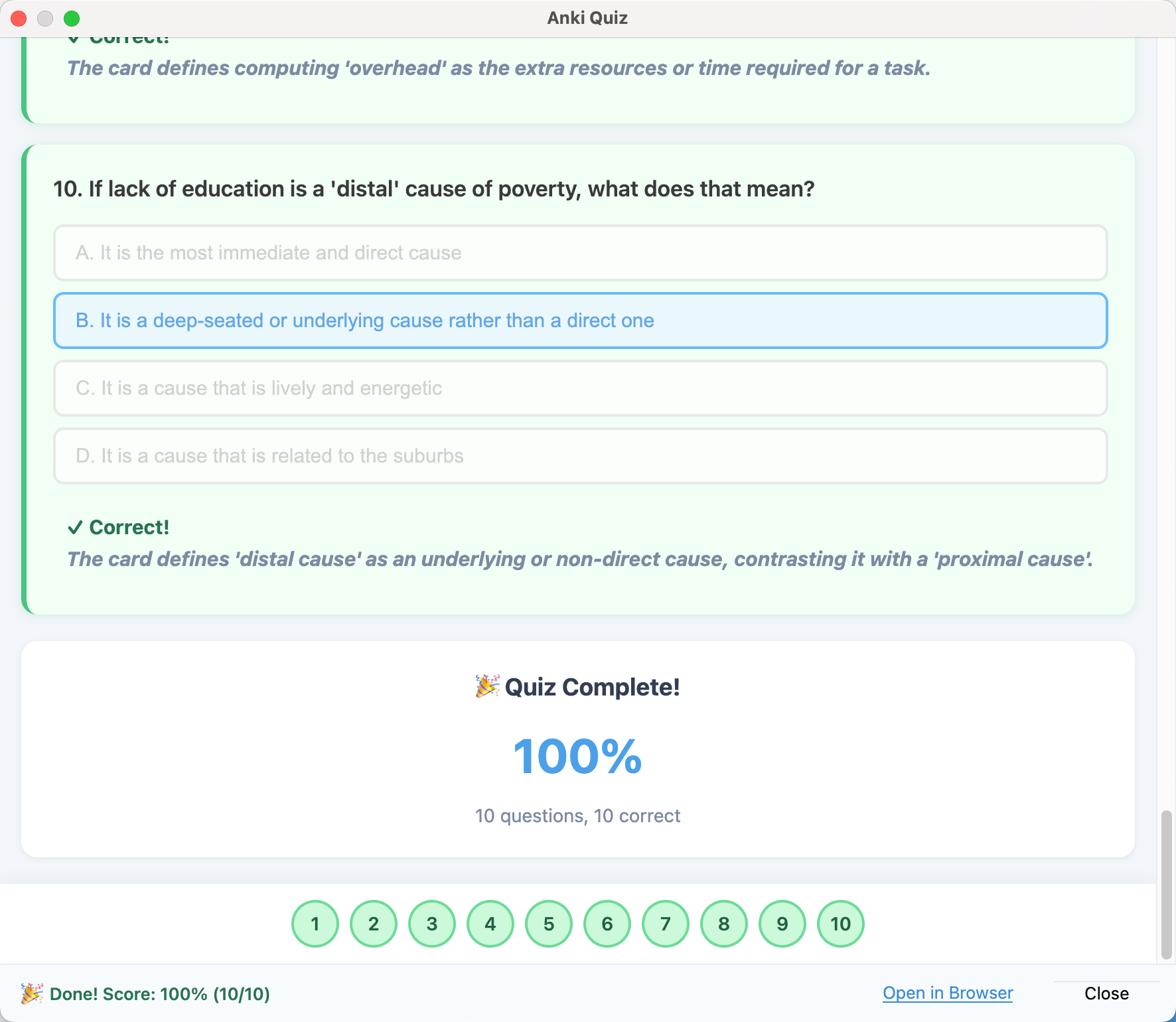
Read the explanations, especially for questions you missed. The generator is instructed to base every answer on the source cards you submitted. A vague explanation may indicate that the original card needs more context.
Where the results go
Every completed quiz appears under 📋 Quiz History on the web dashboard. Entries are grouped into Today, This Week, and Earlier, with a score ring and a correct-answer count. Click an entry to reopen the quiz with your answers and grading preserved. This is useful when reviewing questions you previously missed.
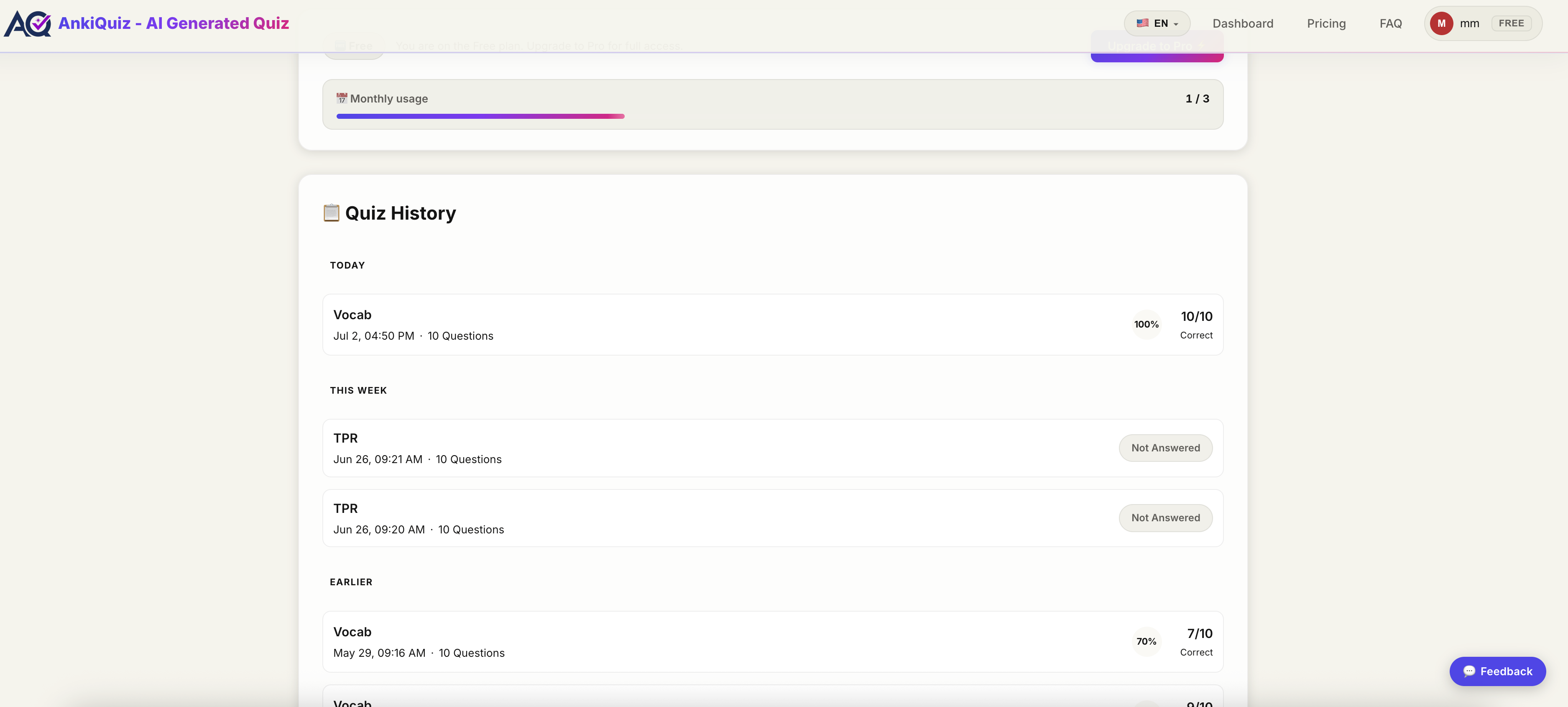
The dashboard also shows your total quizzes, average accuracy, total questions, and best score.
Four ways to improve question quality
The quality of a generated quiz depends more on the source material than on the settings.
1. Provide more cards than questions. If you request 20 questions from only 12 cards, some cards must be reused. That often produces several similar questions about the same fact. The add-on warns you when the card pool is too small and suggests reducing the question count. You can also widen the time range. As a rule of thumb, provide at least two cards for every question.
2. Include only meaningful fields. Remove metadata and other fields that do not help explain the subject.
3. Use Custom Instructions to guide content, not output format. The 📝 Custom Instructions box supports reusable directions such as "every question must include an example sentence" or "distractors must be synonyms or near-synonyms." These instructions affect what the quiz asks.
Avoid directions such as "write HTML," "produce a file," or "give me 78 questions." The text is added to the generation prompt, so format instructions can conflict with the quiz generator. Describe the content you want tested and let the add-on handle the output format.
4. Keep Avoid Recent Quizzes enabled. Without it, quizzes generated from the same deck in a short period can contain many of the same cards.
What it doesn't do
The add-on does not change your Anki collection. It never modifies, rewrites, or deletes cards; it only reads the fields you select. Quiz answers do not affect scheduling, streaks, or review history. Getting a quiz question wrong will not reschedule the corresponding card.
It does send selected data to a server. The card fields you choose, the deck name, and your note type templates are sent to the AnkiQuiz server and then to an AI model for quiz generation. Your complete Anki database is not uploaded, and the submitted data is not used to train models. However, the selected content does leave your computer, so do not submit private or sensitive fields.
Generated questions are not guaranteed to be correct. A language model can misread a card or create a distractor that could also be considered correct. Check important medical, legal, financial, or exam material carefully. Treat the add-on as a practice tool, not an authoritative examiner.
It also does not replace Anki. Your decks and normal review schedule remain unchanged; the quizzes provide an additional way to practise the same material.
Pricing
New accounts receive a 14-day trial with up to 10 quizzes per day, 100 quizzes in total, and 20 questions per quiz. The trial supports Single Choice. After the trial, the free tier provides 3 quizzes per month with up to 10 questions each. Pro costs $9.90 per month and includes all four quiz types, up to 500 quizzes per month, and up to 50 questions per quiz.
Medical and language-learning examples are available for medical decks and vocabulary decks. Medical students can also follow the AnKing and practice-question workflow .
Try it with one deck
Choose a deck you find difficult, set the time range to All, and generate ten single-choice questions. Compare the score with how well you thought you knew the deck. A large difference can reveal that familiar cards were giving you more cues than you realized.
You can start here. See the FAQ for answers to common questions.